傳統要喺外面連返屋企 Windows,常見做法包括 VPN Server、Port Forwarding、DDNS、Firewall NAT rule 等。不過呢類做法通常要處理 public IP、DDNS、Router WAN rule、憑證、VPN server 維護,甚至可能要將某啲服務暴露到 Internet。
今次我用 Cloudflare Zero Trust WARP + Tunnel 建立一個 Home Lab,目標係喺手機 5G 網絡下,安全連回屋企 Windows RDP,而屋企 Router 不需要開任何 WAN inbound port。
整體架構
|
|
今次 Lab 想測試嘅唔只係「連唔連到返屋企」,而係整條 Zero Trust private access flow:
|
|
點解選 Cloudflare Zero Trust,而唔係 Tailscale
Tailscale 非常適合快速 remote access。手機同屋企 Windows 登入同一個 tailnet,就可以用 Tailscale IP 或 MagicDNS 直接連線;如果要 access 成個 subnet,可以再設定 subnet router。
但今次我想一次過測試 WARP client enrollment、Device profile、Split Tunnel Include mode、Tunnel CIDR route、Gateway DNS filtering,以及 Authentication / DNS / Network logs,所以最後選擇 Cloudflare Zero Trust WARP + Tunnel。
Tailscale
- 定位:WireGuard-based mesh VPN
- Remote access:很容易設定
- 連線方式:Device-to-device mesh
- RDP / SSH:很適合
- DNS filtering:不是主打
- Logs / Audit trail:較簡單
- Policy control:ACL / device control
- Port forwarding:不需要
- Home lab 複雜度:較簡單
Cloudflare Zero Trust WARP + Tunnel
- 定位:Zero Trust / WARP / Tunnel / Gateway
- Remote access:需要設定 Tunnel、CIDR route、Device profile
- 連線方式:Client -> Cloudflare -> Tunnel -> Private IP
- RDP / SSH:很適合
- DNS filtering:Gateway DNS filtering 係核心功能之一
- Logs / Audit trail:DNS logs、Network logs、Auth logs 較完整
- Policy control:Device profile、identity policy、Gateway policy
- Port forwarding:不需要
- Home lab 複雜度:較多設定,但功能較完整
簡單講,如果只係追求最快完成 remote access,Tailscale 會更簡單;如果想同時做到 private access、DNS filtering、policy control 同完整 logs,Cloudflare Zero Trust 會比較完整。
Lab 目標
測試路徑:
|
|
成功條件:
cloudflaredTunnel 顯示 Healthy- 手機成功 enroll 入 Cloudflare Zero Trust
- 手機套用指定 Device profile
- Split Tunnel 使用 Include mode,只 include 屋企 Windows private IP
- Tunnel CIDR route 加入同一粒 private IP
/32 - 手機可以經 5G 使用 RDP 連回屋企 Windows
- Cloudflare DNS logs、Network logs、Authentication logs 都有記錄
Lab 環境
本次 Lab 使用以下元件:
- Cloudflare Zero Trust:管理 WARP client、Tunnel、DNS policy、logs
- Windows:屋企內部主機,安裝 cloudflared connector 及提供 RDP
- Cloudflare One Agent:手機 WARP / Zero Trust client
- 5G mobile network:模擬外部網絡
- OpenWrt Router:屋企 Router,原本已使用 Cloudflare Zero Trust DoH/DoT
- RDP TCP 3389:測試用遠端桌面服務
為咗減低風險,今次只 route 單一 Windows IP:
|
|
而唔係直接 route 成個 subnet:
|
|
建立 Cloudflare Tunnel
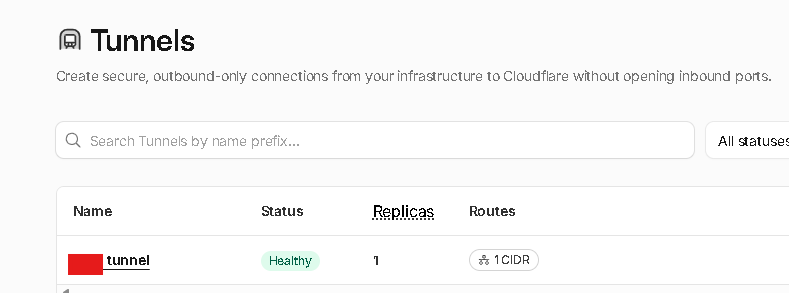
首先喺 Cloudflare Zero Trust Dashboard 建立一條 Tunnel:
|
|
選擇 cloudflared,Tunnel 名稱可以用類似 home-windows。建立後,Cloudflare 會產生一條 Windows 安裝 command:
|
|
喺屋企 Windows 用 Administrator 權限執行後,cloudflared 會安裝成 Windows service,並主動 outbound 連去 Cloudflare。
呢個做法嘅重點係:屋企 Router 不需要開任何 WAN inbound port。
設定 Tunnel CIDR Route
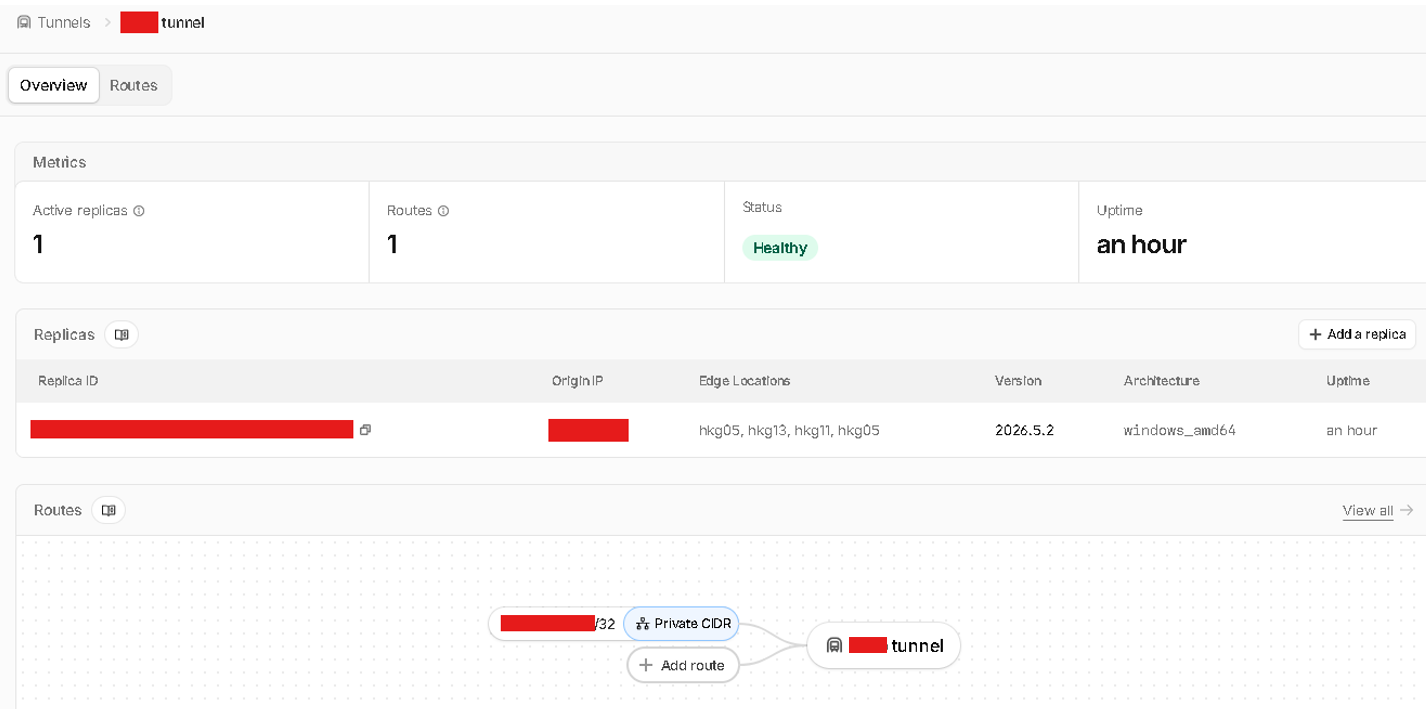
Tunnel 建好之後,需要設定 CIDR route,等 Cloudflare 知道指定 private IP 要經呢條 Tunnel 落返屋企。
|
|
加入:
|
|
注意,呢度只填 IP / CIDR,唔需要填 port。
|
|
CIDR route 係整個 setup 成功嘅關鍵之一。Split Tunnel 只係 client 端決定邊啲 traffic 進入 WARP;CIDR route 先係 Cloudflare 端知道點樣將 private IP traffic 送落指定 Tunnel。
建立 Device Profile
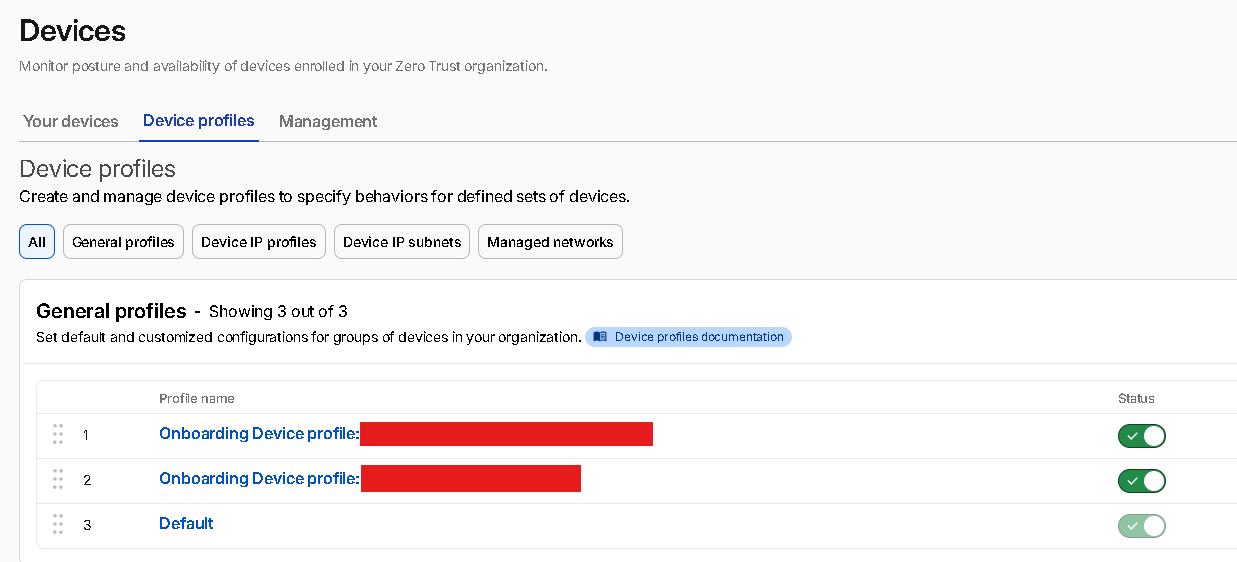
為咗唔影響 Default profile,我建立一個新 Device profile,專門俾測試手機使用。
|
|
主要設定:
|
|
意思係 Cloudflare One Agent 會同時處理 traffic routing 同 DNS resolution / Gateway DNS filtering。
設定 Split Tunnel Include Mode
今次 Lab 唔使用 Full Tunnel,而係使用 Include mode,只將指定屋企 Windows private IP route 入 WARP。
|
|
加入:
|
|
呢個設計有幾個好處:
- 手機普通上網流量唔會全部經 Cloudflare
- 只會將指定屋企 Windows IP 經 WARP / Tunnel
- 減低 route 撞車風險
- 比較容易 troubleshoot
- 適合初期測試

Device Enrollment Permission
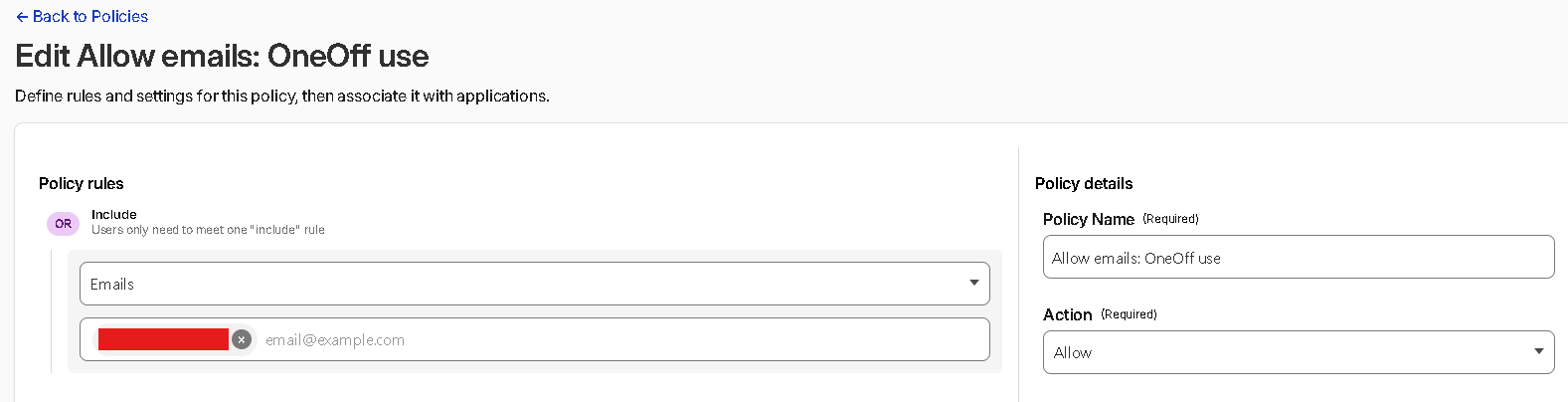
Cloudflare One Agent 要成功 enroll 入 Zero Trust,需要先設定 Device enrollment permission。
|
|
設定概念:
|
|
即係,就算 Device profile 已經指定某個 email,如果 enrollment permission 冇 allow 呢個 email,手機仍然可能登入唔到。
手機安裝 Cloudflare One Agent
手機端安裝 Cloudflare One Agent,登入流程大概係:
|
|
手機會要求安裝 VPN profile,呢個係正常行為。Cloudflare One Agent 需要透過系統 VPN profile 才可以處理 WARP traffic 及 DNS。
登入成功後,Cloudflare Dashboard 會見到手機出現喺 Devices 入面,並可以確認:
|
|
測試 RDP Remote Access
測試時,手機切換到 5G network,確保唔係連緊屋企 Wi-Fi。
|
|
手機可以使用 Microsoft Remote Desktop App。如果 App 只要求填 PC name,一般可以直接填:
|
|
因為 RDP 預設 port 就係 TCP 3389。如果 App 支援指定 port,可以填:
|
|
測試成功後,代表手機已經經過:
|
|
驗證 Logs
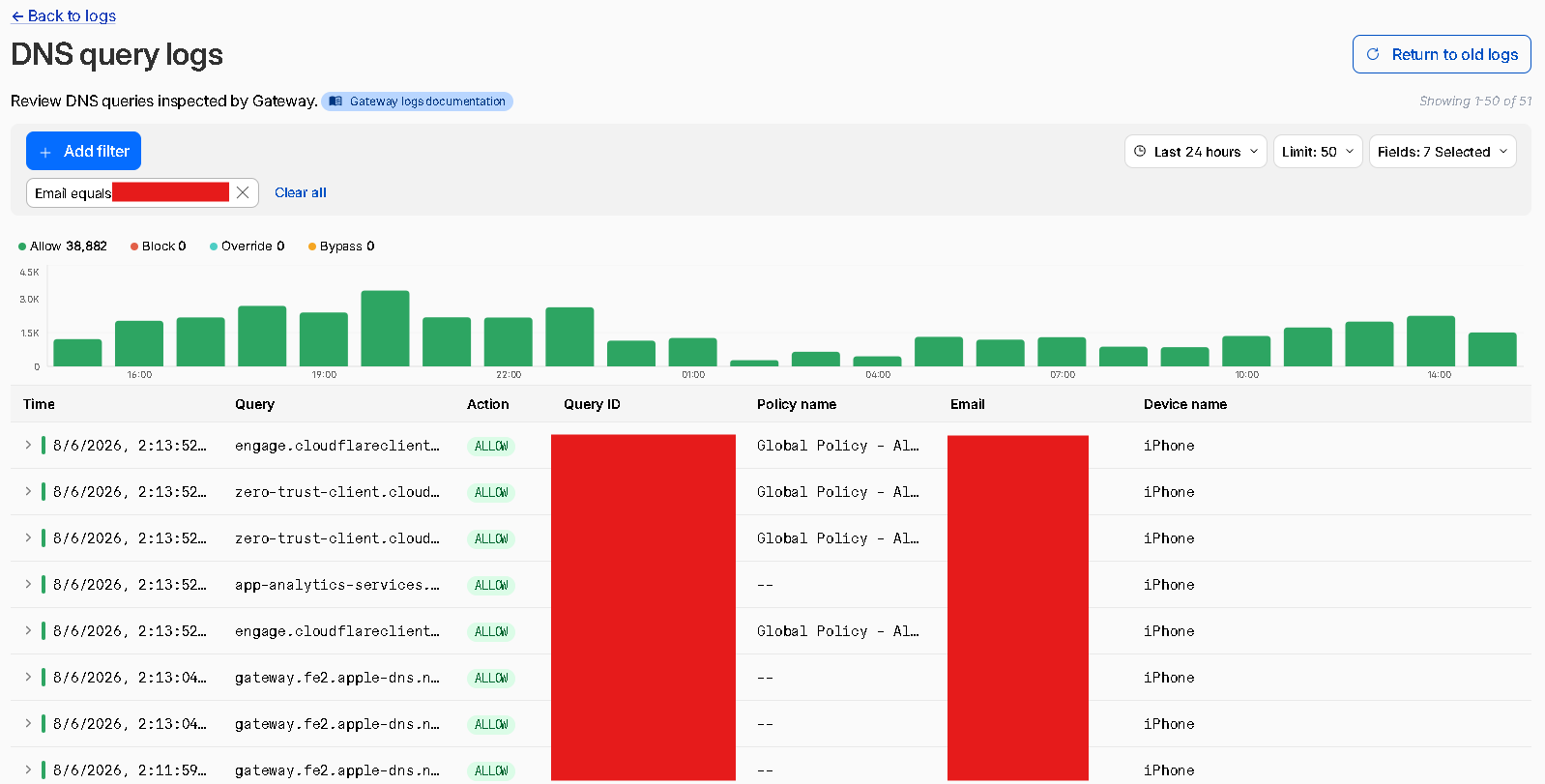
DNS Logs
Device profile 使用 Traffic and DNS mode,所以手機 DNS query 會經 Cloudflare Gateway,並套用 DNS firewall policies。
|
|
可以驗證 DNS query 是否有記錄,以及 action 是否為 Allow / Block。
Network Logs
Network logs 係今次 Lab 最重要嘅驗證位,因為佢證明手機真係有經 Cloudflare Zero Trust 連去屋企 private IP / RDP port。
|
|
成功時應該見到類似:
|
|
Authentication Logs
Authentication logs 用嚟確認 Zero Trust login / one-time code authentication 記錄。
|
|
可以確認 user email、authentication success、login method、timestamp、device / location 等 audit trail。
Troubleshooting 重點
今次最容易漏嘅地方係:
|
|
兩邊都要設定同一粒 IP:
|
|
常見情況:
- WARP connected,但 RDP 唔通:CIDR route 未加 / Split Tunnel 未中 / RDP 未開
- Network logs 完全冇記錄:手機未食正確 profile / Split Tunnel 未 route 入 WARP
- Network logs 有 Block:Policy 擋咗
- Network logs 有 Allow 但仍然唔通:Windows Firewall / RDP service 未開
- DNS logs 有記錄:Gateway DNS filtering 已生效
- Auth logs 有記錄:Zero Trust login audit 正常
Windows 本機可以用以下 command 檢查 RDP port:
|
|
如有需要,確認 Windows 已啟用 Remote Desktop:
|
|
如果需要檢查 Windows Firewall,可以確認 Remote Desktop firewall rules 是否已啟用:
|
|
Security Notes
今次設計有幾個安全重點:
- 不開 WAN inbound port:屋企 Router 不需要 port forward,
cloudflaredconnector 由屋企 Windows 主動 outbound 連去 Cloudflare。 - RDP 不直接暴露到 Internet:避免
Internet -> Router port forward TCP 3389 -> Windows RDP。 - 只 route 單一 IP:今次只 route
192.168.x.x/32,而唔係成個192.168.x.0/24。 - 使用指定 Device Profile:透過 Device profile 指定 email / device 使用 include-only routing,避免影響其他 device 或 default profile。
- DNS Security:手機 DNS query 會經 Cloudflare Gateway,並套用 phishing / malware DNS filtering policy。
- 有 logs 可追蹤:Authentication logs、DNS logs、Network logs 都可以用嚟追蹤及驗證存取行為。
總結
今次 Cloudflare Zero Trust WARP + Tunnel Lab 成功做到:
- 屋企 Windows 安裝
cloudflaredconnector - Tunnel 狀態顯示 Healthy
- Tunnel CIDR route 指向指定 private IP
/32 - 手機安裝 Cloudflare One Agent 並成功 enroll
- Device profile 使用 Include-only Split Tunnel
- 手機經 5G 成功使用 RDP 連回屋企 Windows
- Gateway DNS filtering 生效
- Authentication、DNS、Network logs 均有記錄
- 全程不需要 Router port forwarding
- 不需要 DDNS
- 不需要手動建立 API token
整體嚟講,Cloudflare Zero Trust WARP + Tunnel 可以用相對簡單嘅設定,做到一個安全、可控、可記錄嘅私有網絡遠端存取方案。
今次 setup 最關鍵嘅位係:
|
|
兩邊都要有同一條 private IP route,先可以令手機 WARP client 嘅流量正確經 Cloudflare Tunnel 落返屋企 Windows RDP。
後續可以再擴展:
- 加入 Router 管理介面
/32 - 加入 NAS Web UI
/32 - 測試 SSH
- 將單一
/32擴展成指定 lab subnet - 建立額外 Device profile 測試 Full Tunnel
- 測試 Gateway DNS policy block phishing / malware domain
- 測試不同 Wi-Fi / 酒店 captive portal 情況